Open-source agents in Slack, running on your runtime
The open-source CompanyOS
An agent in Slack answers in the thread your team already reads. The Slack app is the easy half; the open-source runtime behind it is the half you own. In my opinion, Kortix is the open-source CompanyOS to run it on, and I work on Kortix's marketing, so weigh that accordingly.
Approval gates you set. Off until you set them. · Self-host is free · 3,000+ apps in a click
A Slack or Teams message carries no Kortix login, so each person links their Kortix account once: /kortix login in Slack, /login in Teams.
Each channel has a join policy. It decides who may join a session that started there.
Source: kortix.com/docs/guide#channels
Mention the bot in Slack, Microsoft Teams, Telegram or Discord and the reply lands in the same thread.
What connecting Slack to a Kortix project takes
A connection made in the app, one thread rule, one card that holds a call, and a config that lives in git.
Open Customize → Connectors and select the Channels scope. Select Add to Slack, or connect Microsoft Teams.
Send /kortix login in Slack or /login in Teams, open the link, and sign in. You do this once per Slack workspace or Teams tenant.
Source: https://kortix.com/docs/guide#channels
In Slack, one thread is one session. The first message in a thread starts the session. Later messages in the thread continue it.
In a Slack channel, only a mention reaches the agent. A reply without a mention stays between people. The agent reads the thread the next time someone mentions it.
Source: https://kortix.com/docs/guide#channels
An approval covers one exact action. If a detail changes, the action needs a new approval.
An approved action runs once, and the agent does not send it again. Kortix checks the project's rules again when it runs the action, so a Block rule still wins.
Source: https://kortix.com/docs/guide#connectors
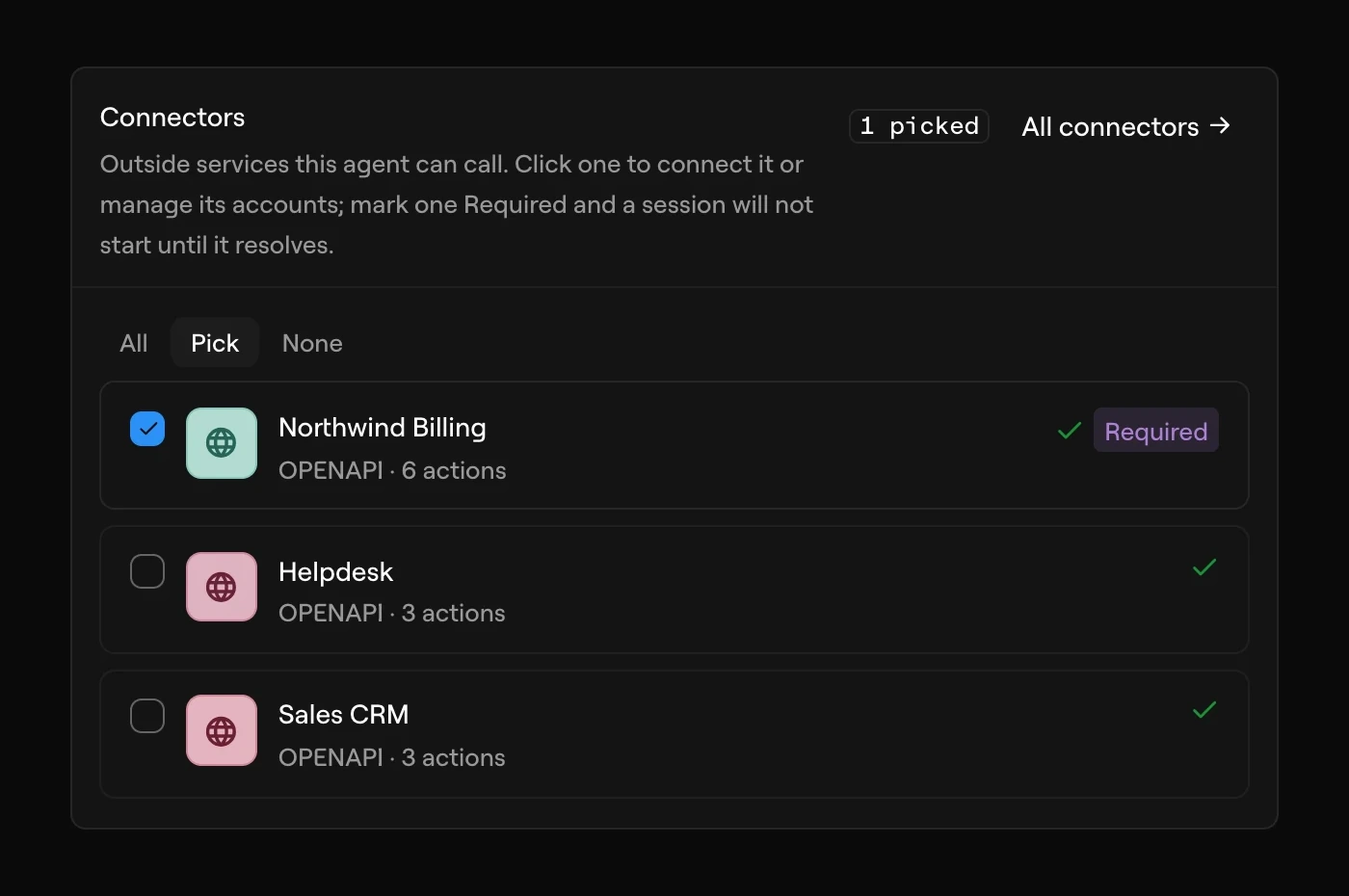
Connectors live in kortix.yaml under connectors:, or in a file it lists under imports:.
Where a message can start a session
One project, four channels: Slack, Microsoft Teams, Telegram and Discord.
- Slacklive
- Microsoft Teamslive
- Telegramlive
- Discordlive
What people ask before they connect Slack
What is an AI agent in Slack?
An agent in Slack is a Slack app that starts a Kortix session from a message. The agent runs the task on its own cloud computer and answers in the thread, so one thread holds one piece of work and its follow-ups, with live progress while it runs.
Do I need to build a Slack app to use an agent in Slack?
No. Kortix ships the Slack app: open Customize → Connectors, select the Channels scope and select Add to Slack. Invite the bot to a channel, send /kortix login once to link your account, and mention it with a task.
Can a Slack agent use my company’s tools?
Yes. Agents call connectors as tools: 3,000+ apps in a click, plus MCP, OpenAPI, Postman, GraphQL and raw HTTP. Connector credentials are brokered server-side and never enter the machine. Every action is recorded.
Is there an open-source way to run agents in Slack?
Yes. Kortix is the open-source CompanyOS, and Slack is one of its channels. Run it on Kortix Cloud, in your VPC, or on your own on-prem network. Self-host is free.
Where does the agent’s configuration live?
In the project’s git repo. An agent is a block under agents: in kortix.yaml, and its system prompt is either an inline prompt: or a prompt_file: that names a .md file in the repo. Connectors live in kortix.yaml under connectors:, or in a file it lists under imports:. The binding that ties a Slack channel to a project is live project state.
Put an agent in the channel your team already reads.
Slack connects from Customize → Connectors, and the runtime behind the bot is a repo you own.
Approval gates you set. Off until you set them. · Self-host is free · 3,000+ apps in a click